
Juwa 2.0 is an entertainment app with a built-in self-registration page, so you can create your own account without waiting on anyone. It’s not available on Google Play or the App Store, so registration and download usually happen through an external link. 21+ only (or the legal age in your location).
Before we start, here is the verified access link where you can self-register and download the app:
How to Self-Register and Download Juwa 2.0 (Step-by-Step)
When you open the registration page, you’ll land on a “Create your account” screen.
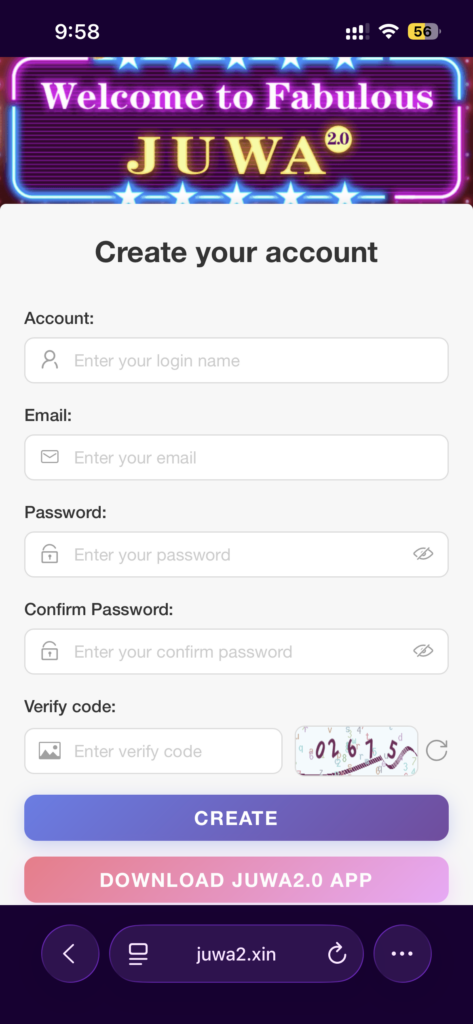
Step 1: Enter your Account (Login Name)
In the Account field, type the username you want to use for login.
Tip: Keep it simple (letters + numbers). If it says the name is taken later, add a few numbers.
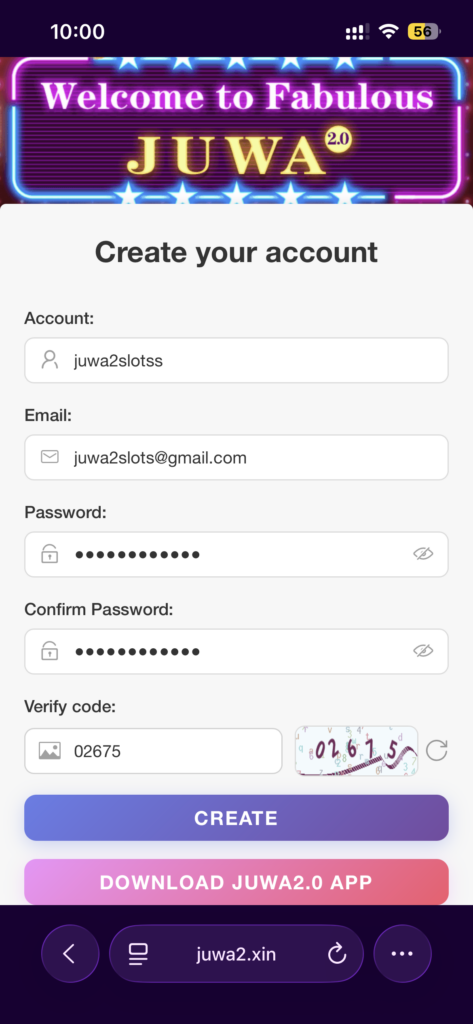
Step 2: Add your Email
Enter a valid email address you can access. This is used as part of your account details.
Step 3: Create a Password
Type a secure password you’ll remember.
Tip: Use a mix of letters and numbers for fewer errors.
Step 4: Confirm your Password
Re-type the same password in Confirm Password exactly (this is where most people make a small typo).
Step 5: Enter the Verify Code (Captcha)
At the bottom you’ll see a small image with numbers/letters (the verify code).
Type that code into the Verify code box.
Tip: If the code is hard to read, hit the refresh icon next to it to generate a new one.
Step 6: Tap “CREATE”
Once all fields are filled, tap the CREATE button.
Step 7: Registration Successful → Download the App
If everything is correct, you’ll see a “Registration Successful!” pop-up showing your account details and a big button that says:
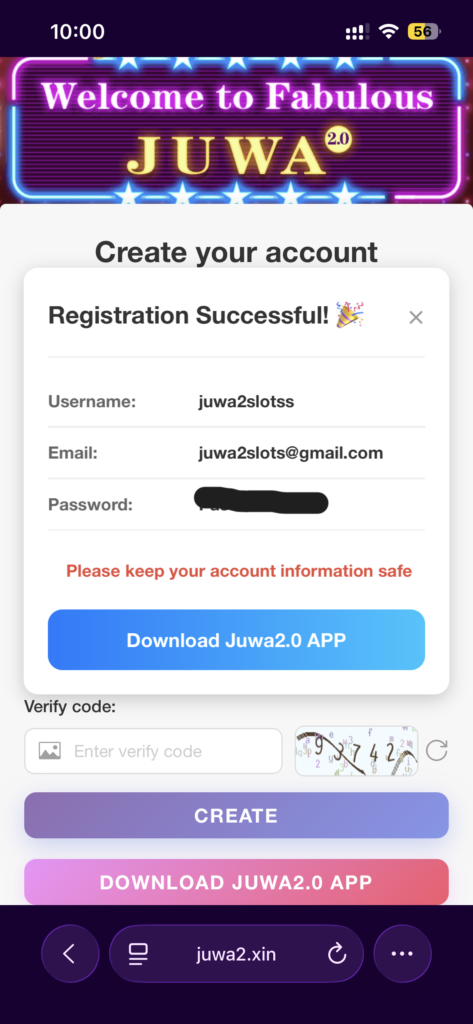
Tap it to download → install → open the app → log in using the same Account (login name) and password you created.
Here are the common problems you might be facing in Juwa 2.0 (and the fixes)
1) Page not loading / blank screen
Fix:
- Try a different browser (Chrome/Safari)
- Turn off VPN / ad blocker / private DNS
- Clear cache and reload
- Switch Wi-Fi ↔ mobile data
2) Verify code (captcha) keeps failing
Fix:
- Type it exactly as shown (no extra spaces)
- Refresh the verify code image and try the new one
- Zoom in if needed, then re-enter carefully
3) “CREATE” button does nothing
Fix:
- Make sure every field is filled
- Confirm password must match exactly
- Refresh the page and re-enter details
- Try a different browser
4) Username / Account name not accepted (taken or invalid)
Fix:
- Add numbers at the end (example:
juwa2slots99) - Avoid symbols/emojis
- Keep it short and clean
5) Password gets rejected
Fix:
- Use letters + numbers (example:
Juwa2026Play) - Don’t use a super short password
- Make sure confirm password matches exactly
6) Registration successful, but download won’t start
Fix:
- Refresh the page and tap Download Juwa2.0 APP again
- Try another browser
- Switch networks (Wi-Fi ↔ mobile data)
7) App won’t install (Android)
Fix:
- Enable Install unknown apps for your browser
- Re-download the file (corrupt downloads happen)
- Free up storage space
Still facing problems?
If you’re still stuck, go back and follow these steps slowly:
- Enter Account (login name)
- Enter Email
- Create Password + Confirm Password
- Type the Verify code (refresh it if unclear)
- Tap CREATE
- Tap Download Juwa2.0 APP after registration success
Most issues come from captcha entry, password mismatch, or browser/VPN blocking the page.
Juwa 2.0 FAQs
Why can’t I self register in Juwa 2.0?
Most of the time, it’s a verification code (captcha) mistake, password mismatch, username taken, or a browser/VPN setting blocking the form. Try refreshing the verify code, double-checking the confirm password, and switching to Chrome (Android) or Safari (iPhone).
Is Juwa 2.0 available on Google Play or the App Store?
No. Juwa 2.0 is an entertainment app that’s not listed on Google Play or the App Store, so it’s commonly accessed through an external registration/download link.
What is the “Verify code” on the signup page?
It’s a captcha used to confirm you’re a real user. Type it exactly as shown (no spaces). If it’s hard to read, tap the refresh icon to generate a new code.
Why does the “CREATE” button do nothing?
Usually a required field is missing or the confirm password doesn’t match. Make sure Account, Email, Password, Confirm Password, and Verify code are filled correctly. If it still won’t submit, reload the page, turn off VPN/ad blockers, and try again in another browser.
What if my username/account name is taken?
Try adding numbers at the end (example: juwa2slots99), keep it short, and avoid symbols/emojis.
What happens after “Registration Successful”?
You’ll see a confirmation popup and a button like Download Juwa2.0 APP. Tap it to download → install → open the app, then log in using the same account name and password you created.
The download won’t start – what should I do?
Refresh the page and tap the download button again, try a different browser, and switch networks (Wi-Fi ↔ mobile data). On Android, make sure your browser is allowed to download files.
The app won’t install on Android – how do I fix it?
Enable Install unknown apps for the browser you used to download, then try again. If it still fails, re-download the file and confirm you have enough storage space.
Is there an age requirement to use Juwa 2.0?
Yes – 21+ only (or the legal age in your location). Always follow your local rules.
Where can I self-register and download Juwa 2.0?
Use the verified access link here: Download and Register Here
Leave a Reply